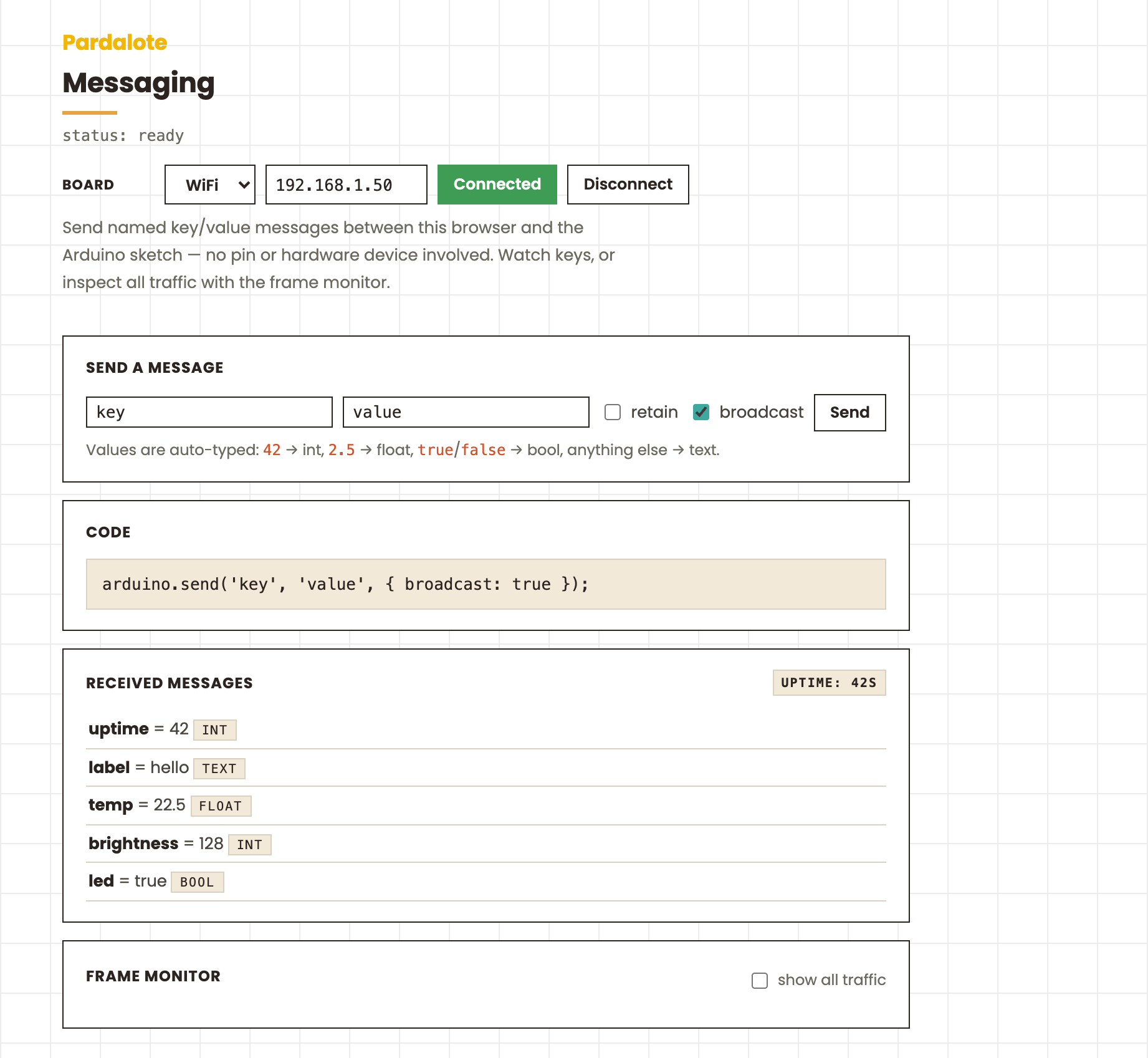
Messaging
Named key/value messages between the browser and the Arduino sketch — no pin, no hardware device. Send a value under a key, watch keys for changes, and inspect all WebSocket traffic with the frame monitor.
What it shows
- Send any value type from the browser —
int,float,bool, ortext(auto-typed from the text box) — with optionalretainandbroadcast. - Receive every message via
arduino.on('message', …), and one specific key (uptime) viaarduino.watch(…). - Frame monitor — tick the checkbox to log every frame in and out
(
SERVO_WRITE,DIGITAL_WRITE,MESSAGE, …), decoded and named.
The sketch (messaging.ino) drives the built-in LED from a led message, logs
every message to Serial, and sends a retained uptime counter once a second
— retained means a browser that connects later immediately gets the current value.
Run it
- In Arduino IDE: File → Examples → Pardalote → messaging, select your board, upload.
- Open
index.htmlin a browser. - Type the board's IP into the Board IP field and press Connect — this is a tool, so no code editing is needed and the browser remembers the IP for next time.
Try sending led = true / false to toggle the LED. Open the page in two
browser tabs and send with broadcast ticked — the other tab sees it too
(the board relays it). Tick retain, reload, and the value is still there.
API used
JS
arduino.send('mode', 'idle', { retain: true, broadcast: true });
arduino.send('count', 42);            // int    (auto-typed)
arduino.send('temp', 22.5);           // float
arduino.send('on', true);             // bool

arduino.watch('uptime', (v, key, type) => …);
arduino.on('message', ({ key, value, type }) => …);
arduino.messages['mode'];             // last received value

arduino.on('frame', ({ dir, cmdName, target, params }) => …);   // inspect all traffic
Arduino
Pardalote.send("uptime", secs, MSG_FLAG_RETAIN);
Pardalote.watch("led", onLed);        // void onLed(const Message& m)
Pardalote.onMessage(onAny);
Pardalote.onFrame(onFrame);           // void onFrame(const FrameEvent& ev)